Access management - User setup
Setting up access for internal and external users
What are internal and external users in online banking?
Internal users are company employees. The company's access administrator can create such access for their employees and grant them access to accounts, cards and other services that the company is using, as well as being able to revoke access. Access permissions of users that have been deactivated are stored as such in the list of internal users, for later use.
External users are parties who have been granted access to the company's online banking and app. These are usually not employees of the company but need access because of their work on behalf of the company. Administrators can both grant and revoke access permissions for external users to the company.
When external access is revoked, the user disappears from the list of external users with access to the company.
Creating internal users
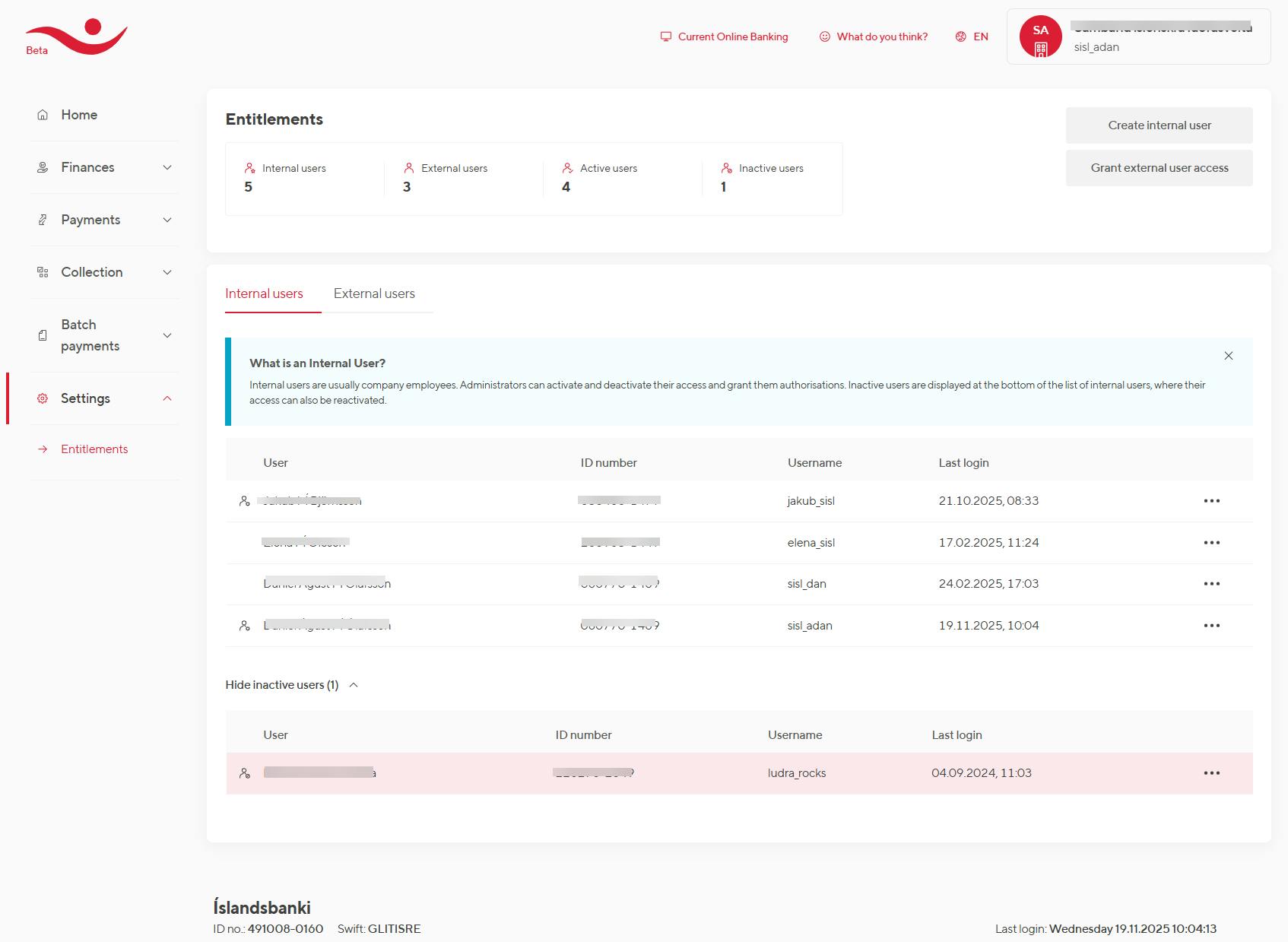
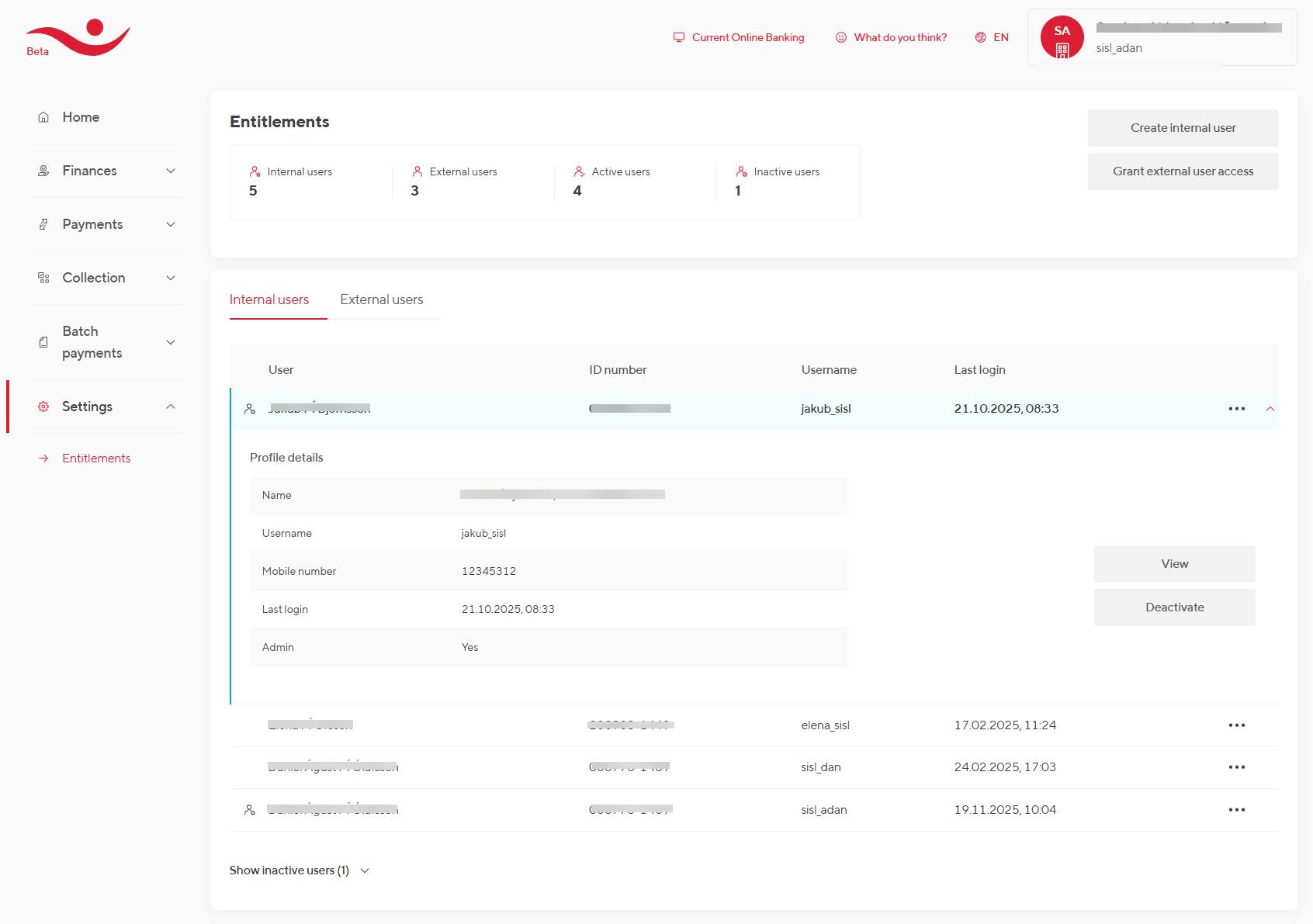
Click on "Settings" -> "Access control". Then this window will appear, and you need to click on "Create internal user".
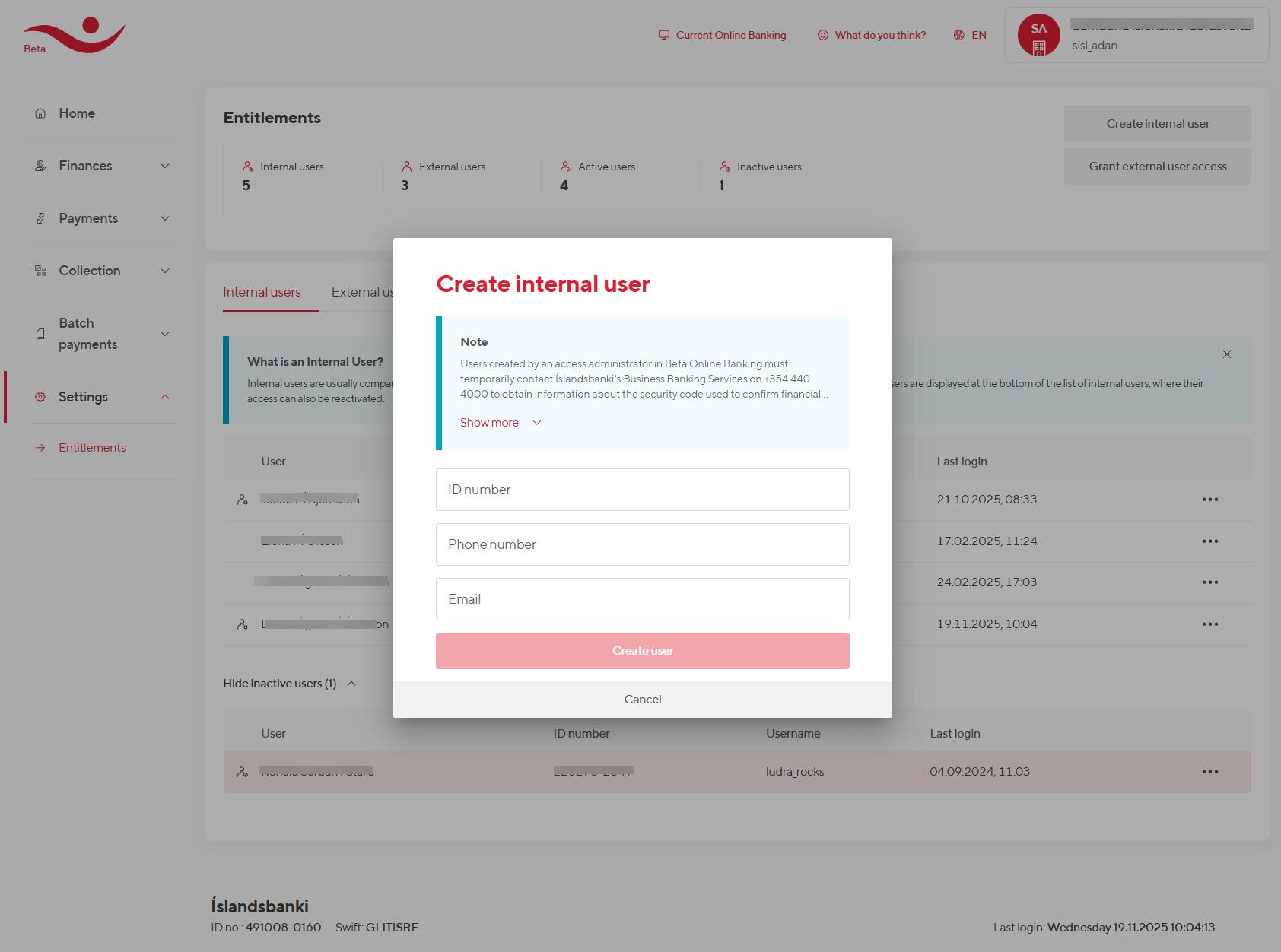
The administrator needs to enter the following information and confirm with an electronic ID or an identification app (Auðkenni).
External user connection
You need to click on "Give external user access"
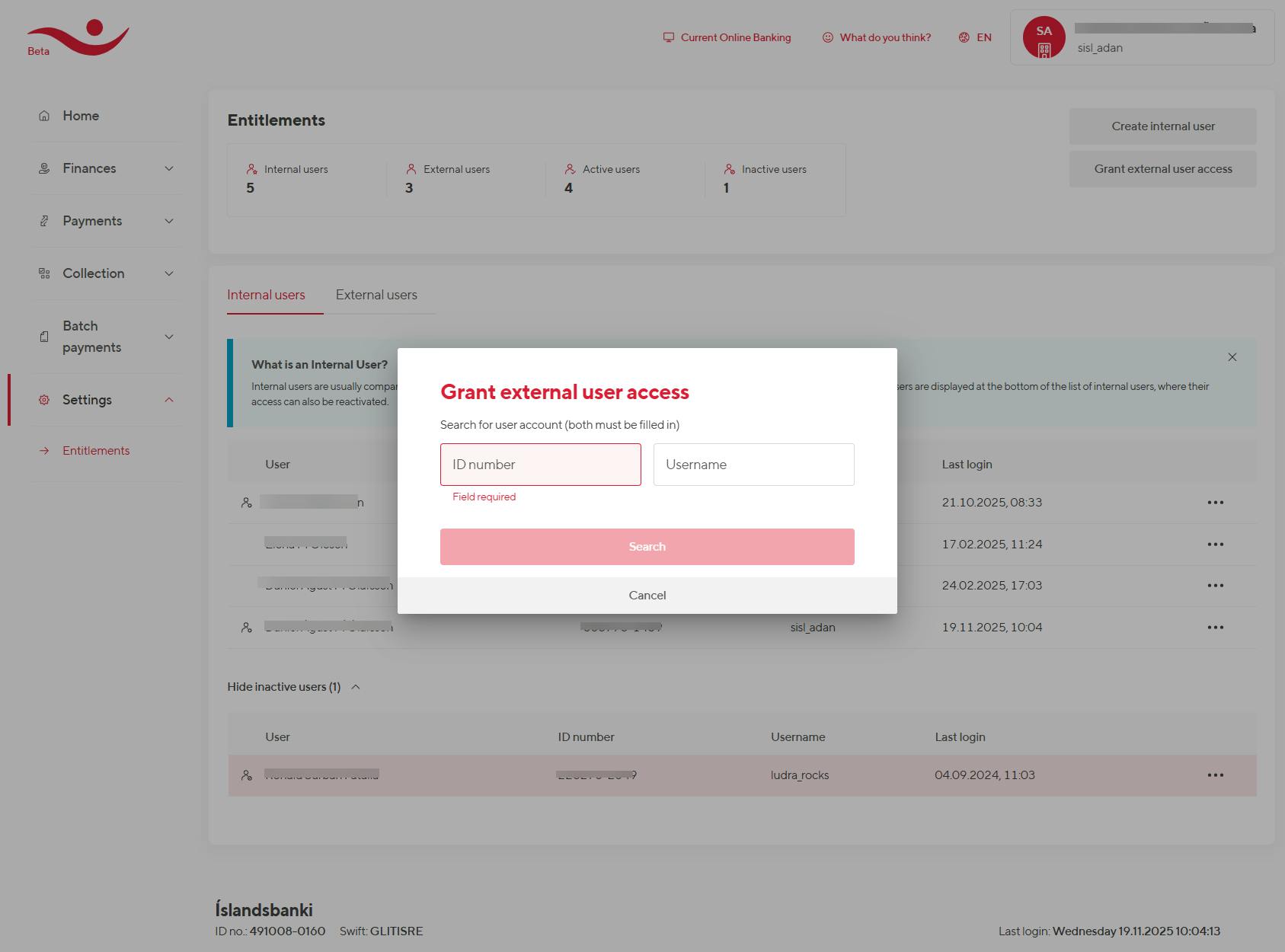
Then you need to fill in the ID number and username of those who are to receive access and click on search.
Changing access
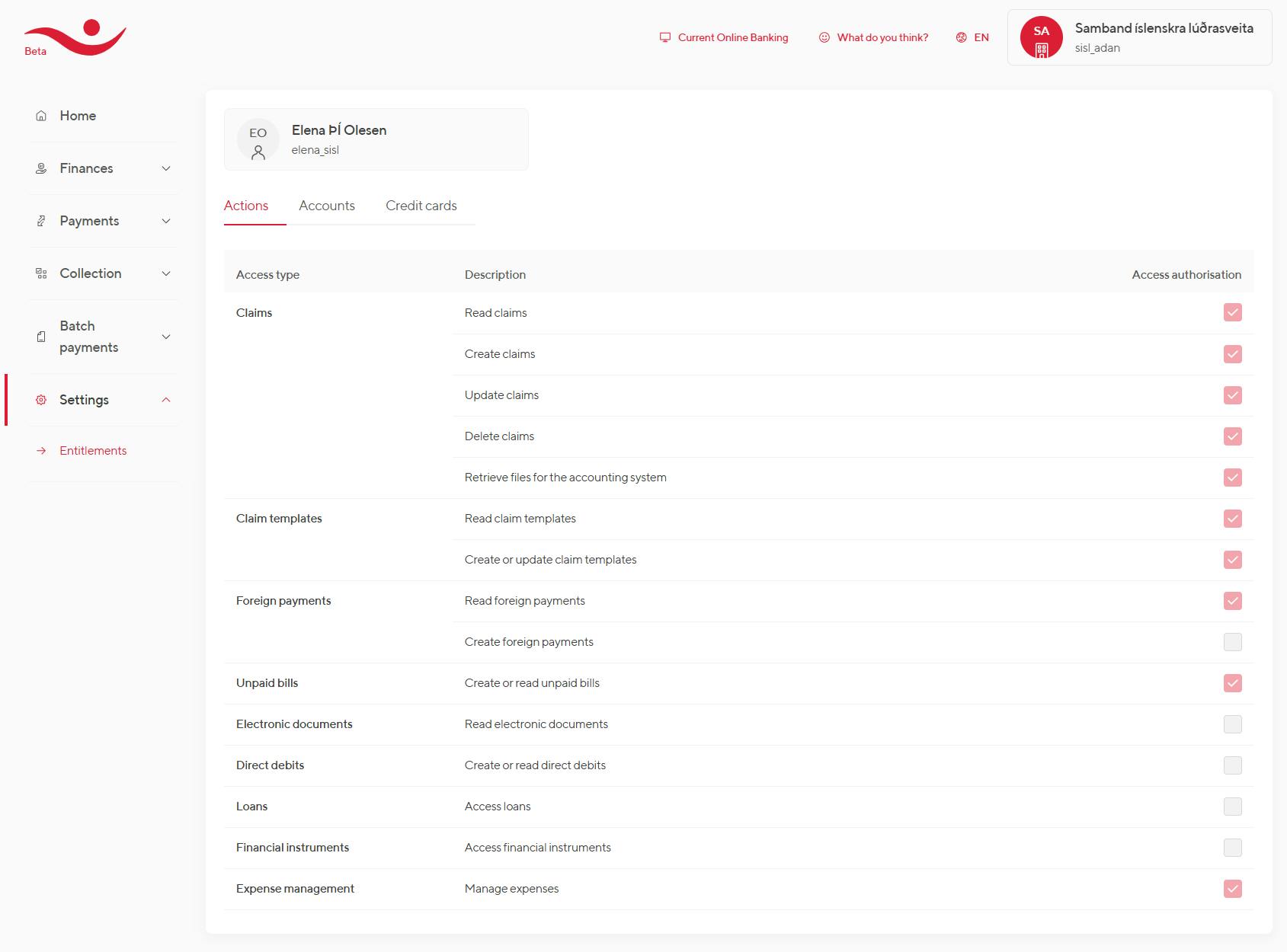
To change access, use the settings pages in the old online bank. In the new one, it is not yet possible to set up access, but you can view user access permissions by clicking "View" for the user in question. This feature is coming soon to the new online bank.
Under access permissions, you can:
- Grant permission to view financial information.
- Grant permission to perform functions.
- Grant access to bank accounts, either to view an account or register a transfer.
- Grant permission to view credit cards.
- Grant permission to view portfolios and trade securities online.
Finally, the administrator selects what the user should have access to and clicks "Statement and confirmation". Lastly, the administrator will receive a request for confirmation with strong authentication, such as an electronic ID or an identification app (Auðkenni).