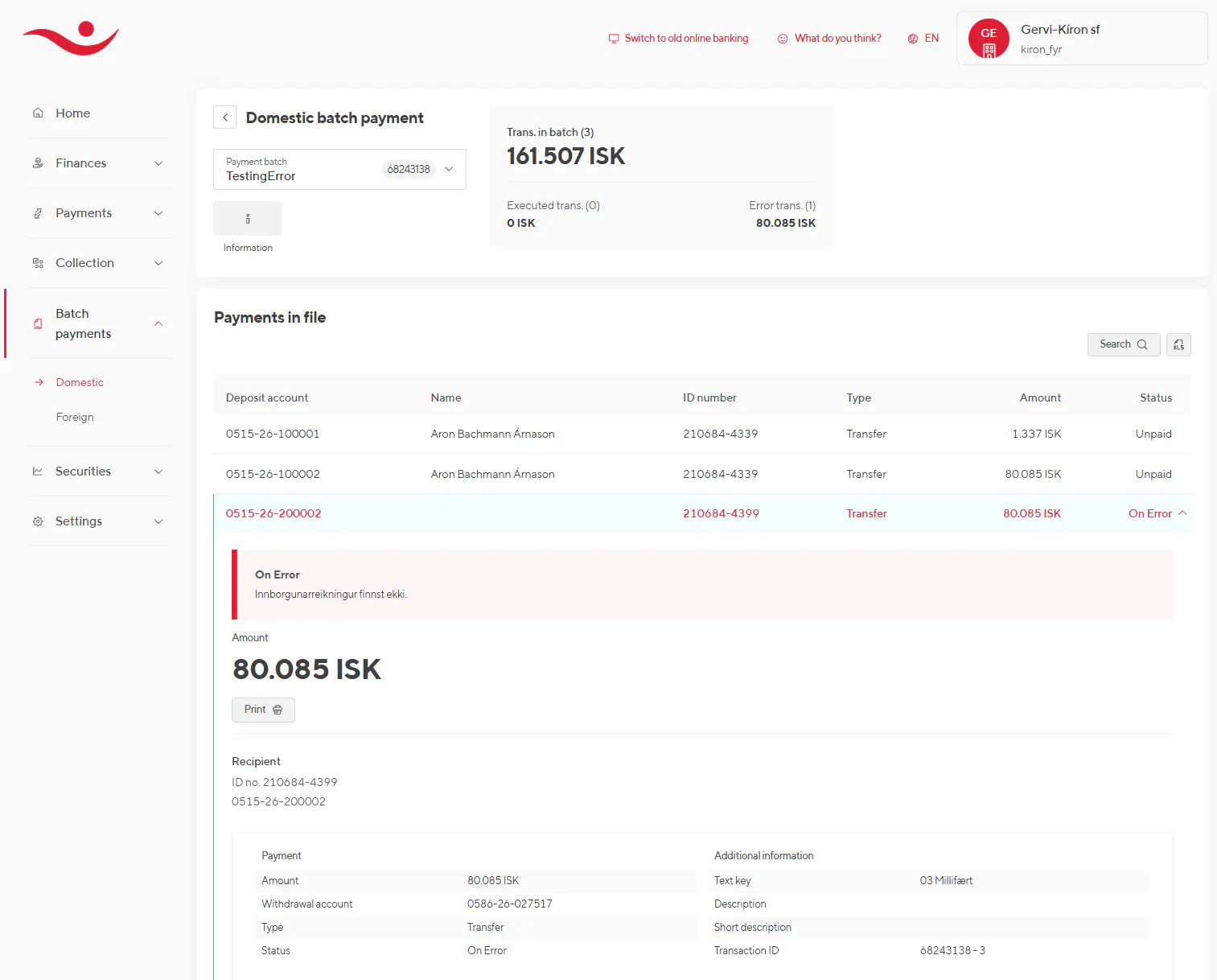
Domestic Batches Upload
Domestic batch payments allow you to send multiple domestic payments at once in the Online Bank. This is especially useful for paying salaries, suppliers, or other recurring expenses efficiently and securely. In more detail a batch is:
- A collection of payments processed together as one batch.
- All payments must be domestic (ISK payments)
- Each batch can contain only one type of payment
- User confirms the entire batch with a single authentication (SCA)
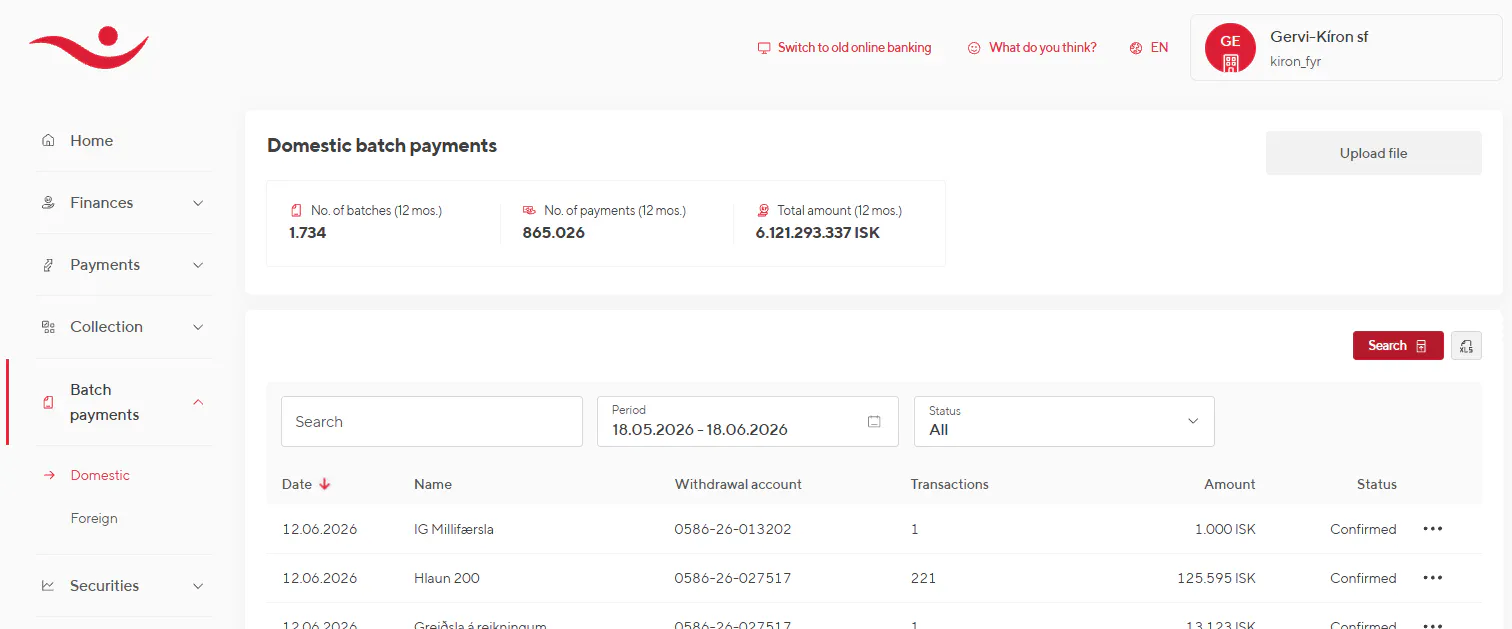
Upload a payment file
This is the way to register batch payments thru the online bank.
- Go to Payment batches > Domestic
- Select Upload file
- Upload your payment file
- Review the payment and confirm
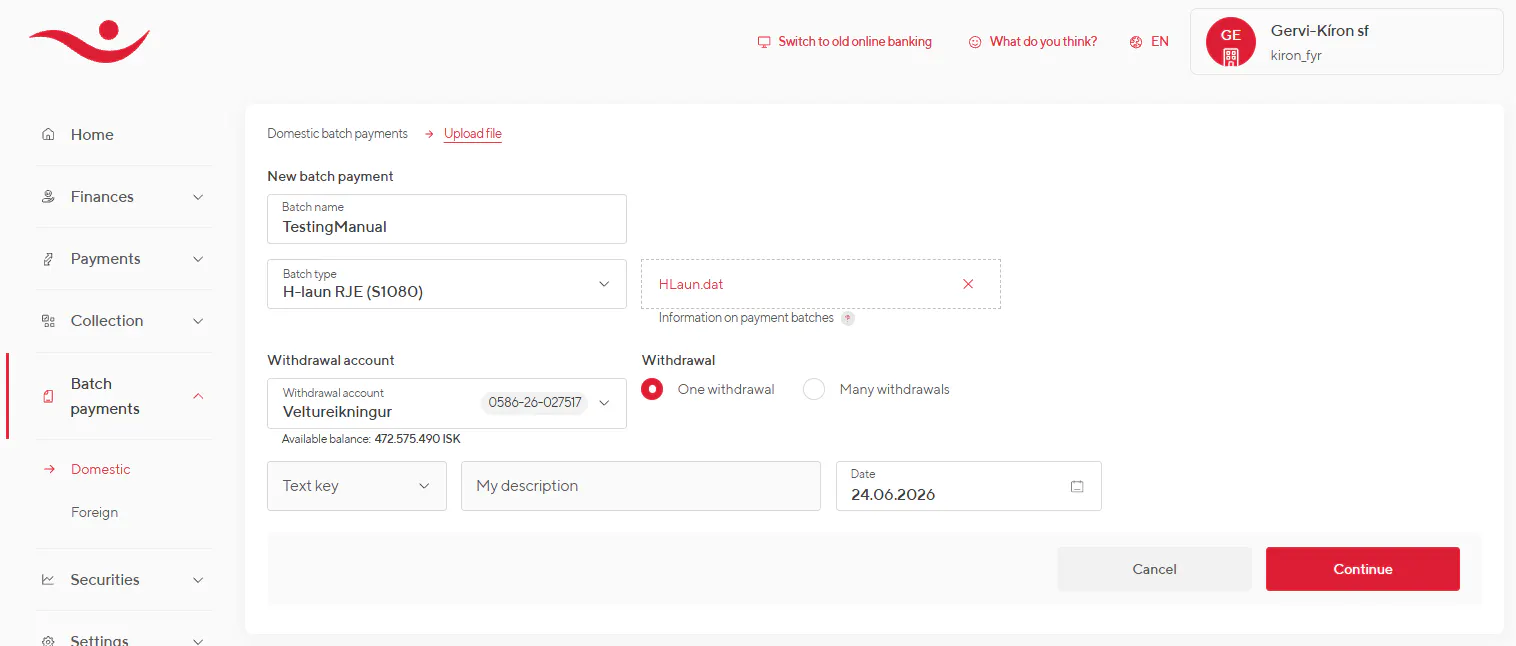
Important:
- The system validates the file automatically
- You cannot edit individual payments after upload
- If needed, you can cancel and upload a corrected file
Reviewing and fixing errors
After uploading or creating a batch:
- All payments are displayed in a list
- You can edit basic batch information (date, withdrawal account etc.
- If there are errors: Problem payments are clearly marked You’ll see what needs to be fixed
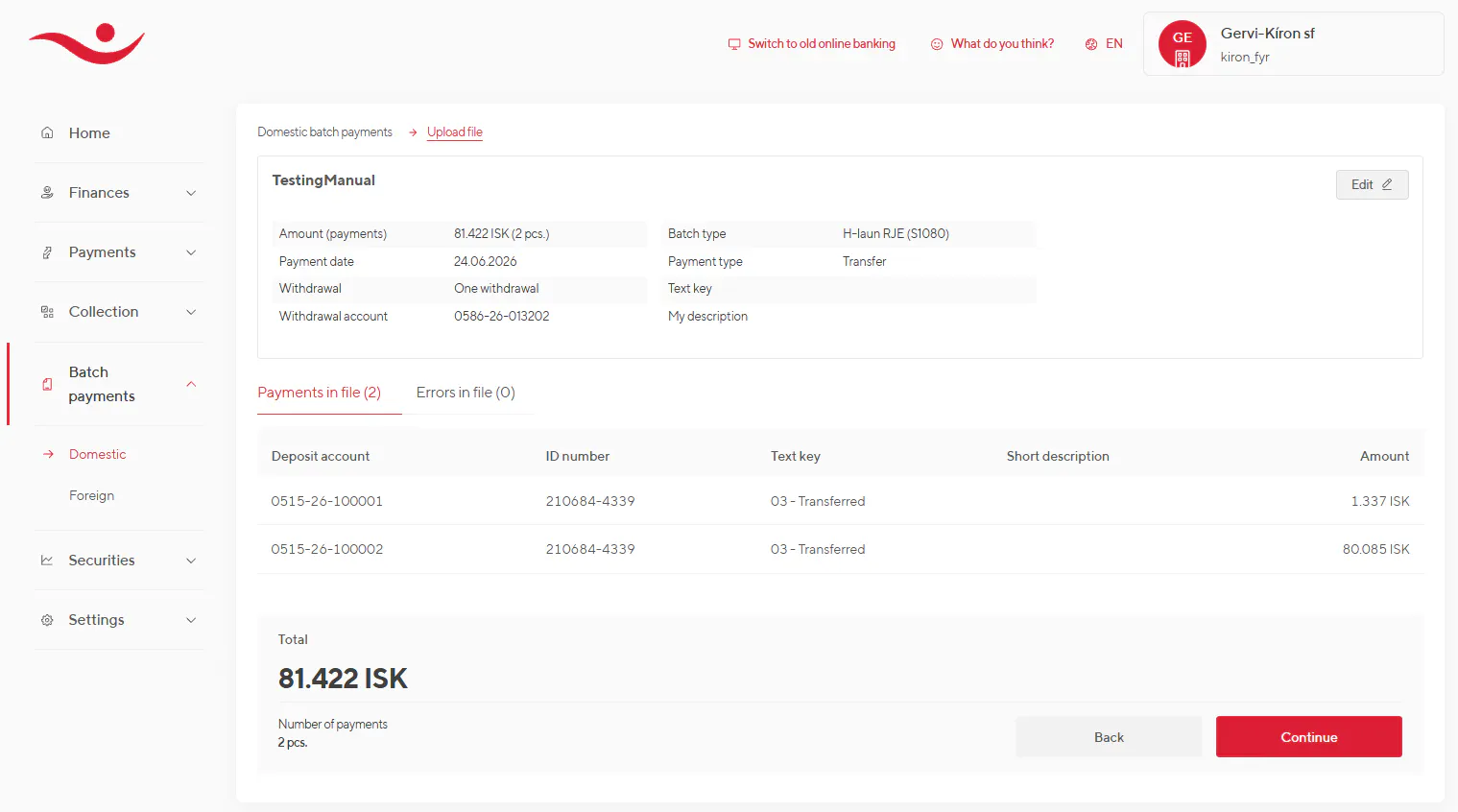
You can then:
- Continue with valid payments only, or
- Cancel the batch and upload a corrected file
Confirming and sending a batch
When you’re ready:
- Confirm the batch using secure authentication (SCA)
- The entire batch is processed together
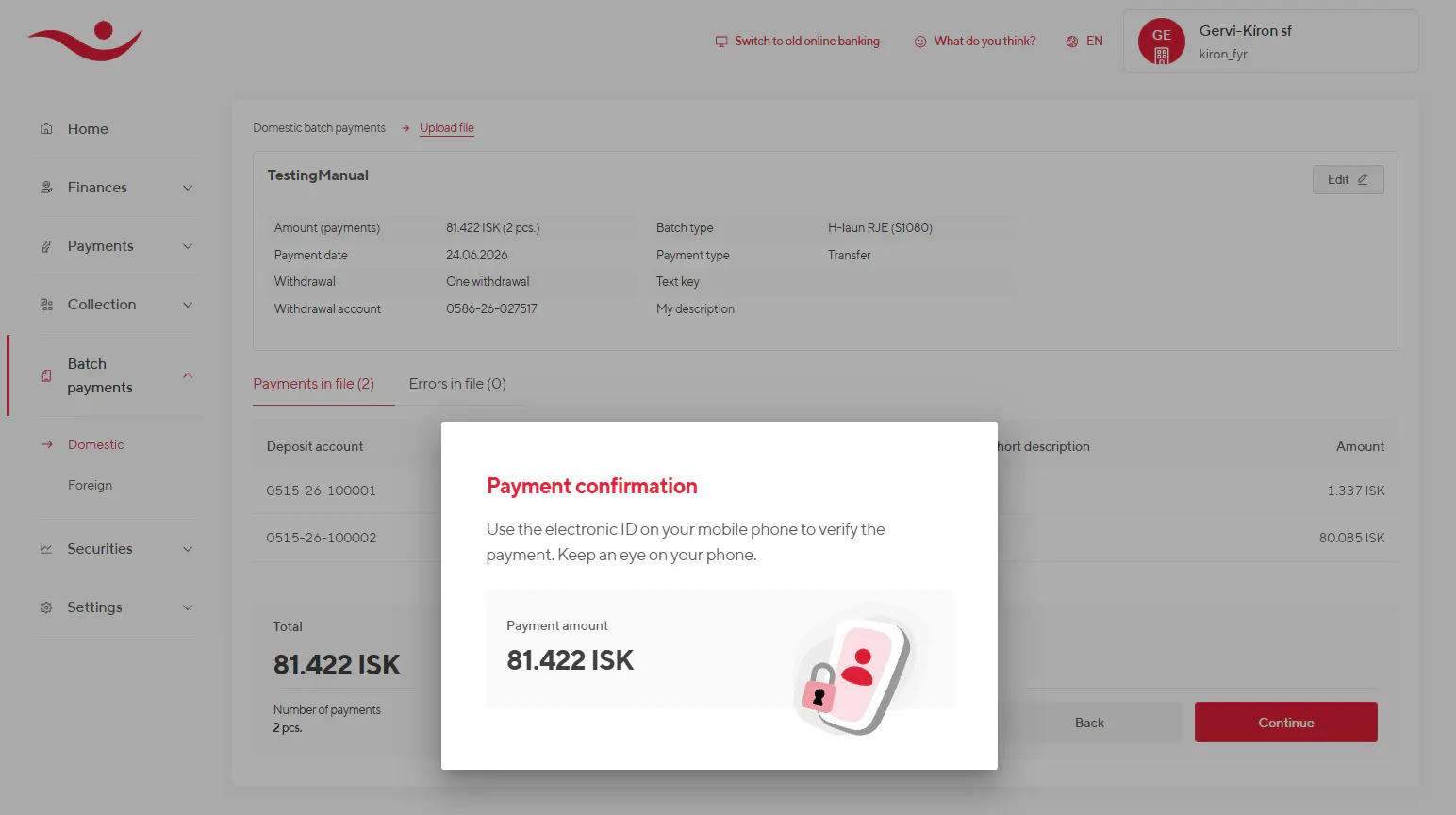
Depending on your permissions:
- You may send the batch directly, or
- Send it for approval (signing) by another user (not available yet, follows the approval process)
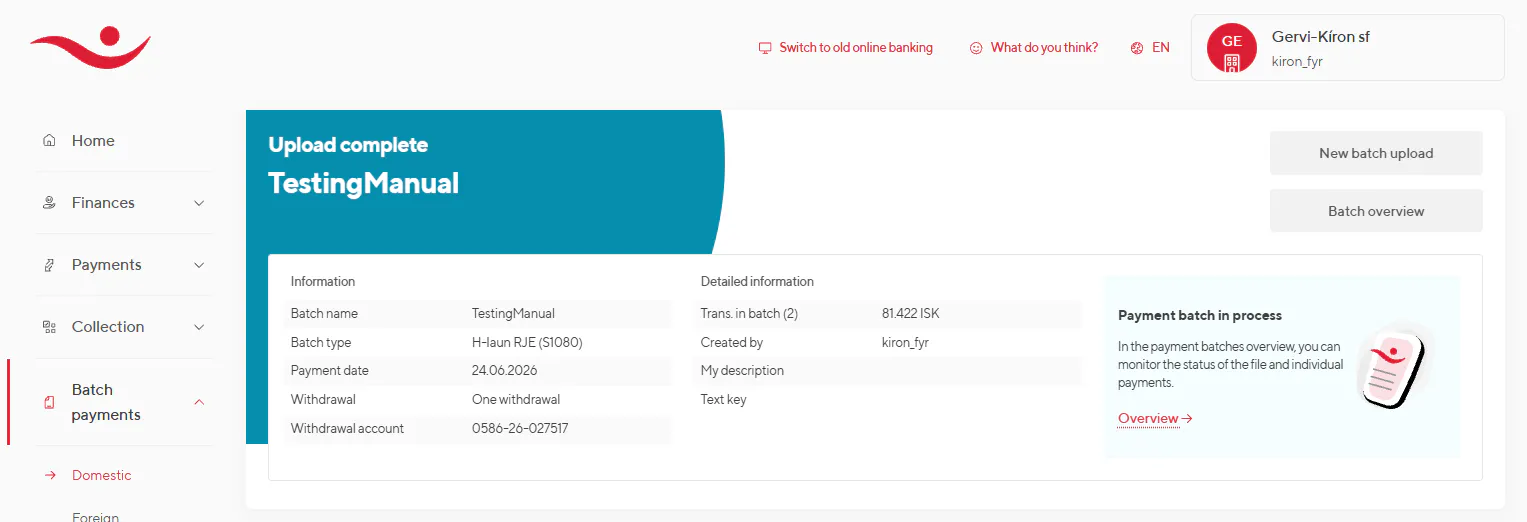
Batches on error
Error notification
- After batch upload and error check, the list of all payments in the batch is displayed.
- If there are 1 or more payments on error, a notification is displayed at top, in a text box (blue or red).
- The text highlight's the total number of uploaded payments and the total number of payments on error.
- The error details will include the line number where the error occurred. The user should be able to see which payments/lines went on error so that he can easily fix the errors
The notification also lists the two options to continue for users:
- Process the batch as is, this means that the error payments will NOT be processed.
- Cancel the batch, fix the file and upload it again.If user opts for cancelling the batch, he clicks on a button: "New upload".This will present a upload input (modal) to the user. User uploads the new batch where an error test is run on the new upload. The modal should follow the same approach as is used in the known recipients importAfter upload and error test, user views the payments list from the latest upload.This also will keep all settings, name etc. user had registered for the previous upload.